
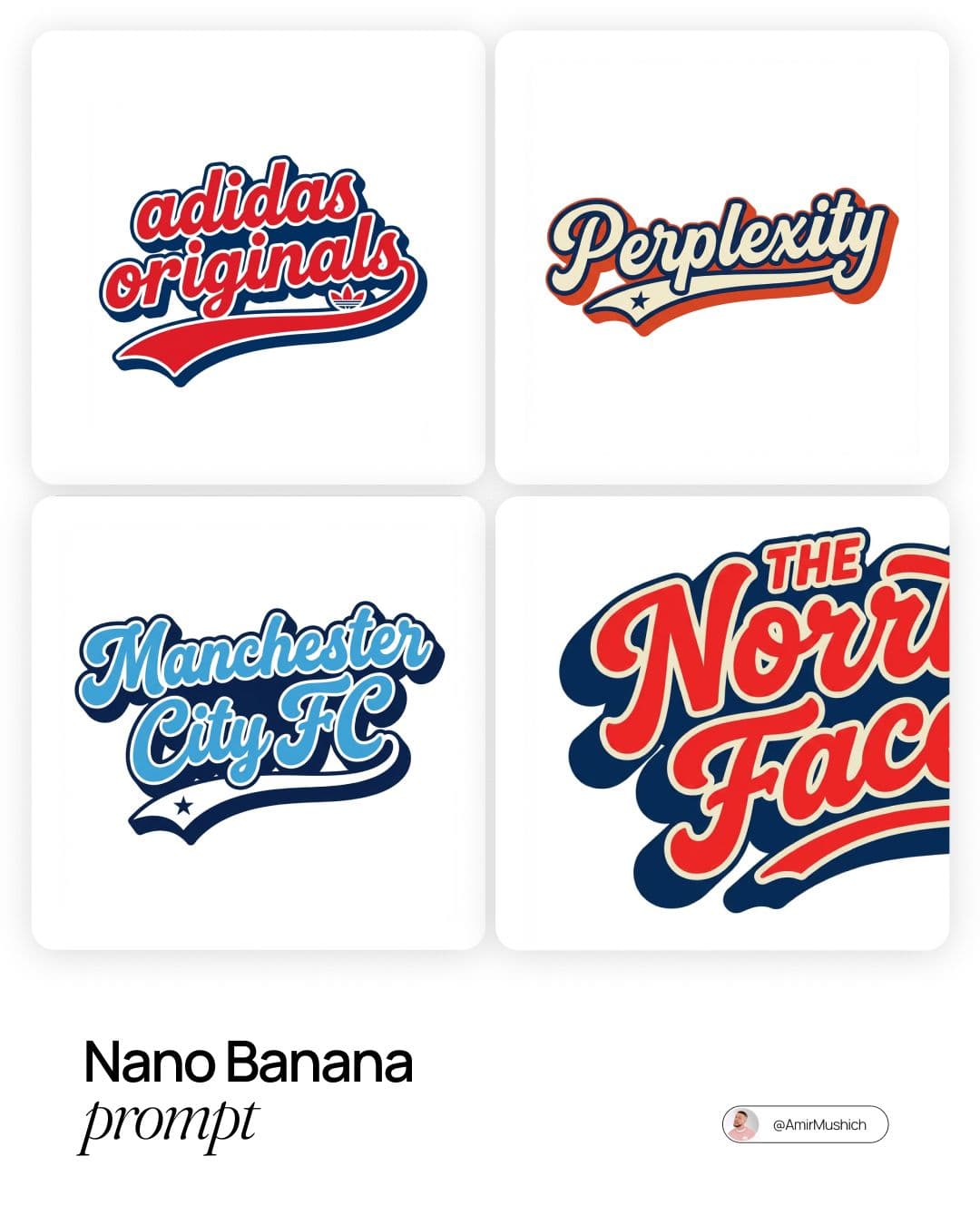
Four-Card Retro Script Lettering Sheet
REFERENCE-FIRST IMAGE EDITING
Upload a reference photo, say what should change and what should stay, then choose a supported model and framing. Start from a prompt when you want a new scene.
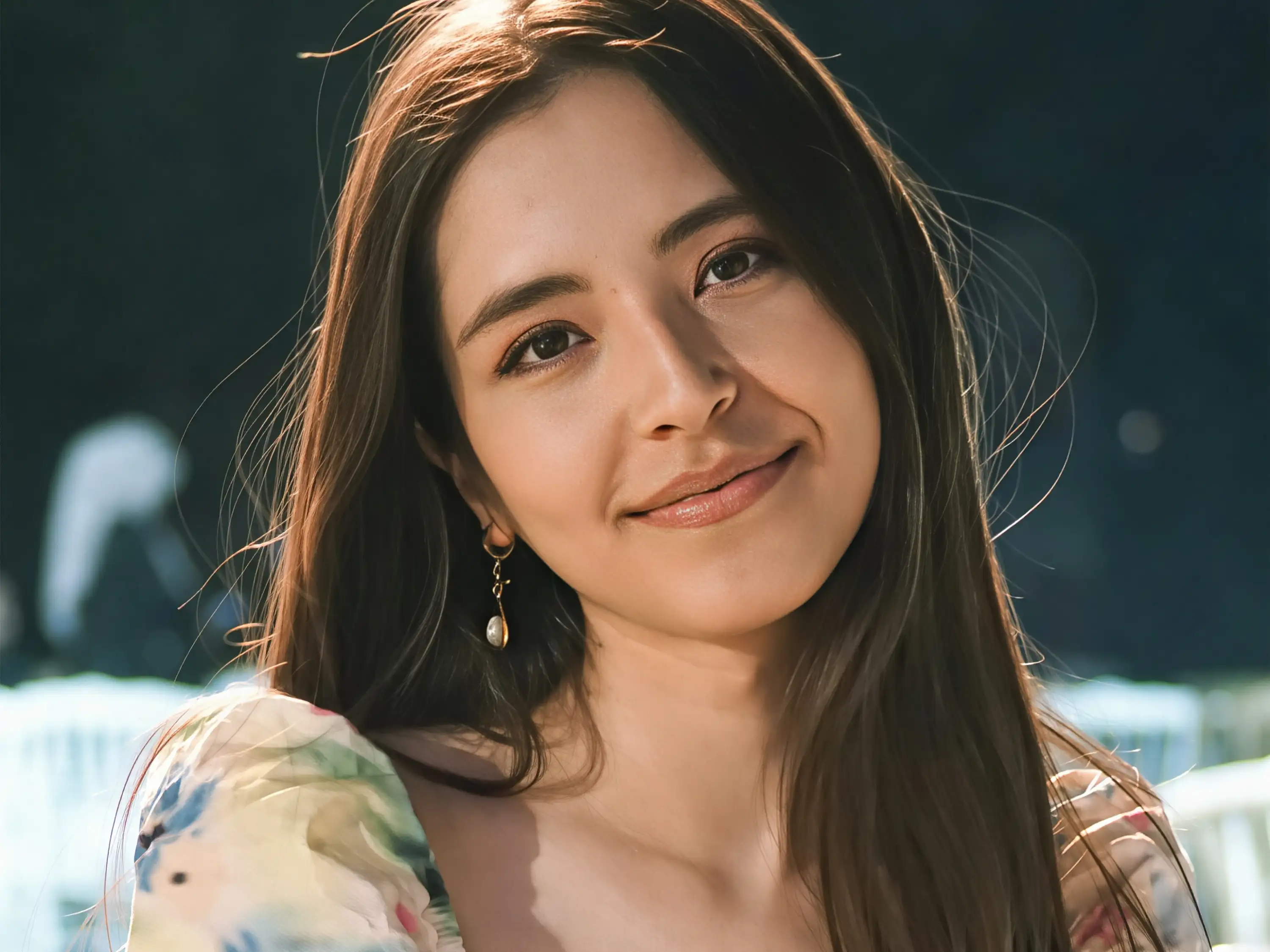 Example starting image
Prompt
“Keep the portrait framing; place the subject in a quiet studio with soft window light.”
YOUR NEXT IMAGE
Use Text to Image for a new scene, or Image to Image to guide a generation with a reference photo. Describe the requested change in the prompt; controls vary by model.
Credits for completed generation steps are not refunded, including results blocked by safety checks or affected by saving or display errors. Failed or unstarted steps are refunded; unconfirmed steps remain pending.
Four-Card Retro Script Lettering Sheet

Miniature Crew Product Build Prompt
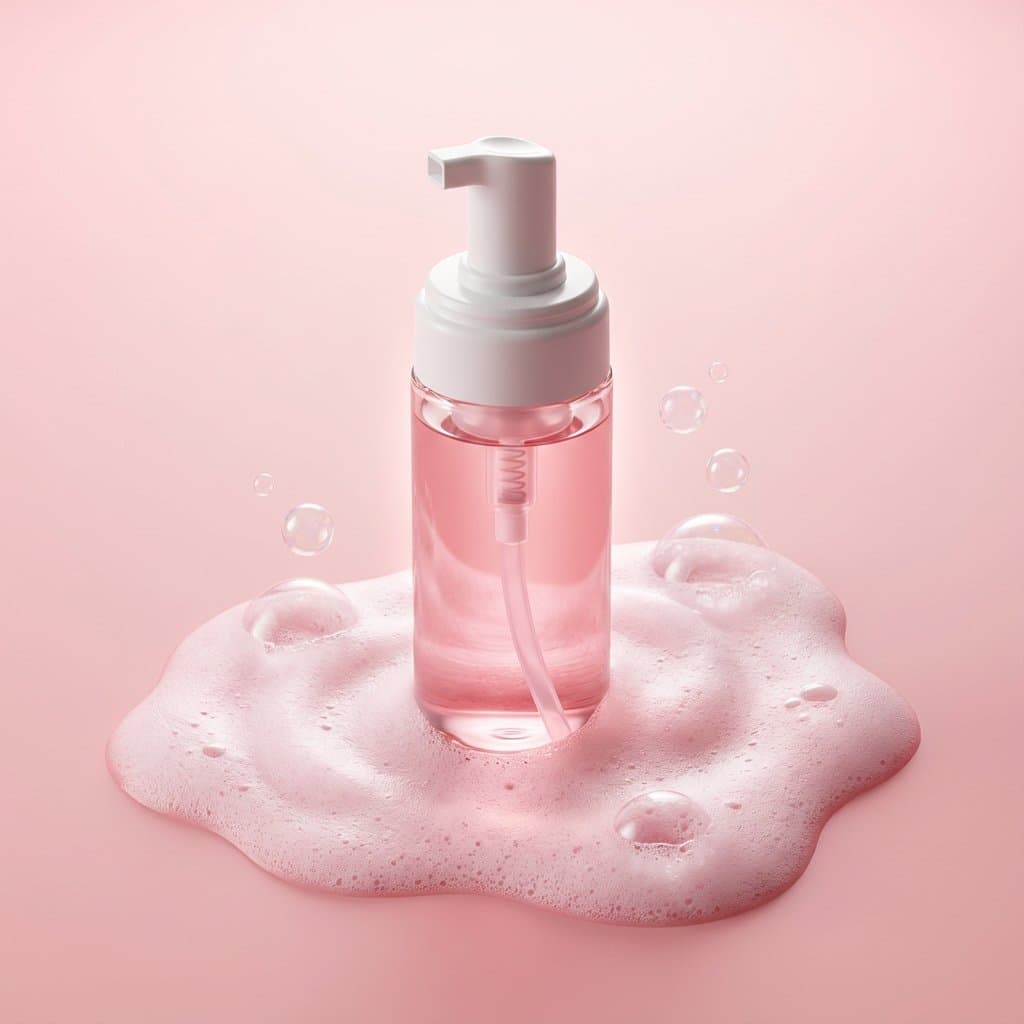
Pink Foaming Cleanser Product Prompt
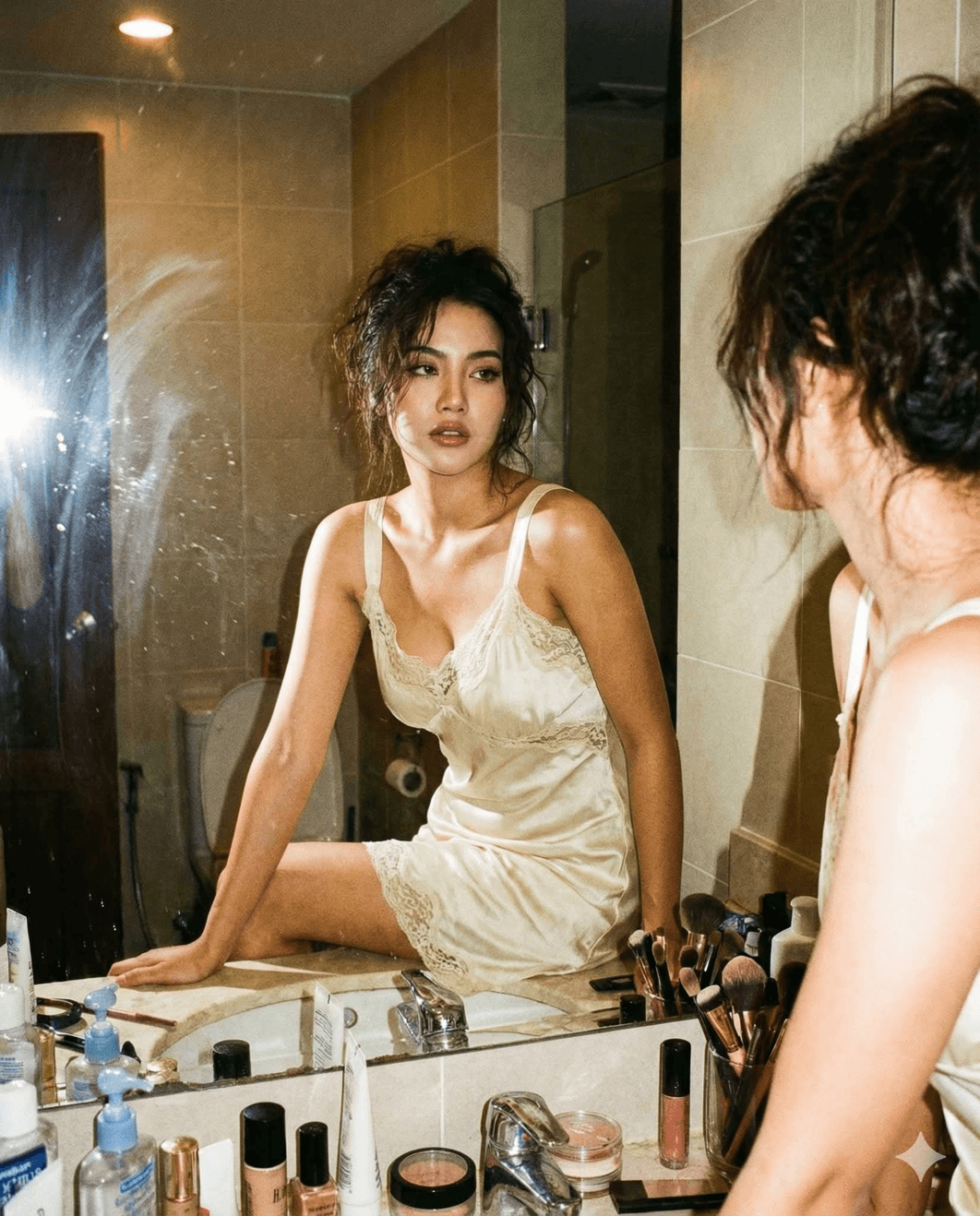
Raw Flash Bathroom Mirror Prompt
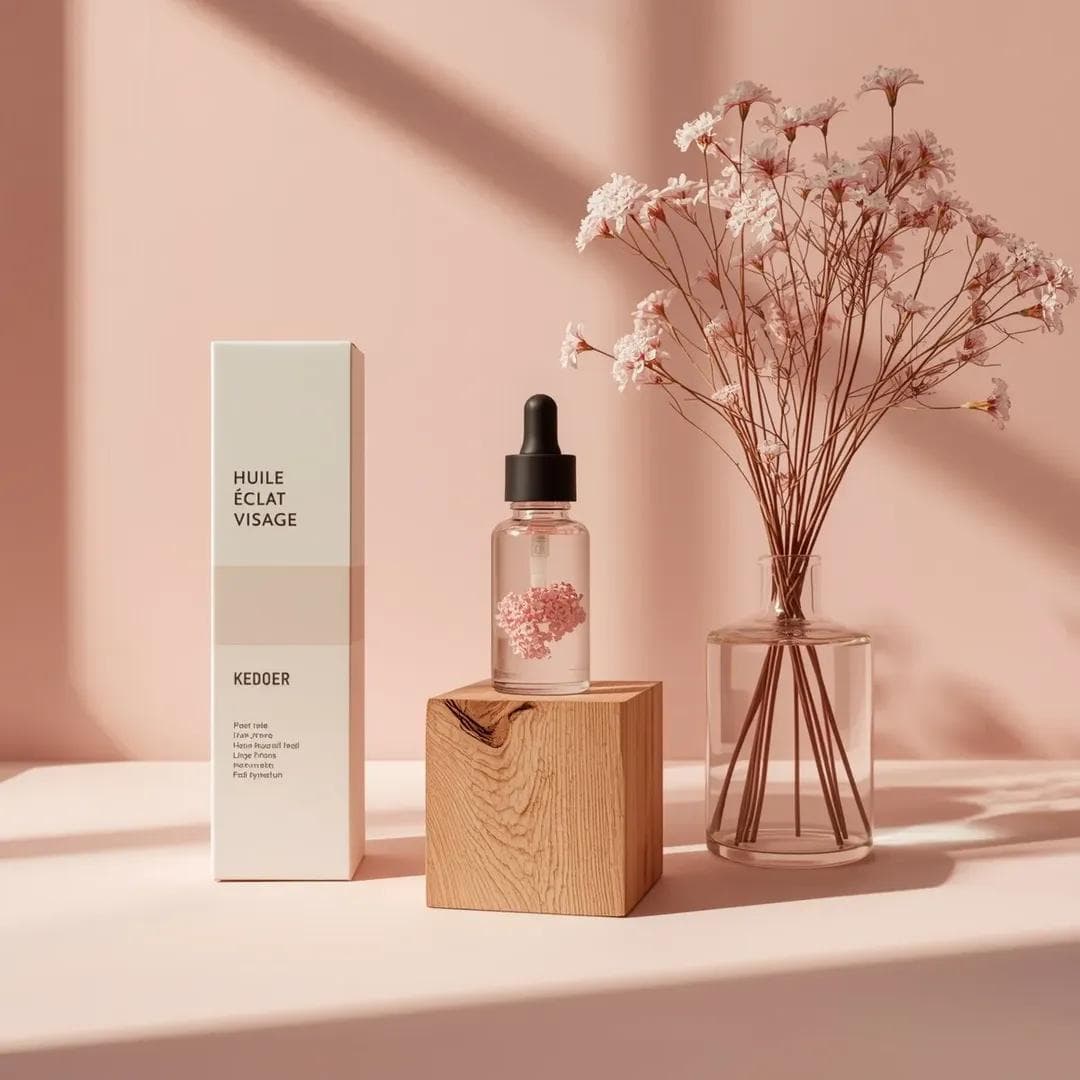
Pink Skincare Product Still-Life Prompt
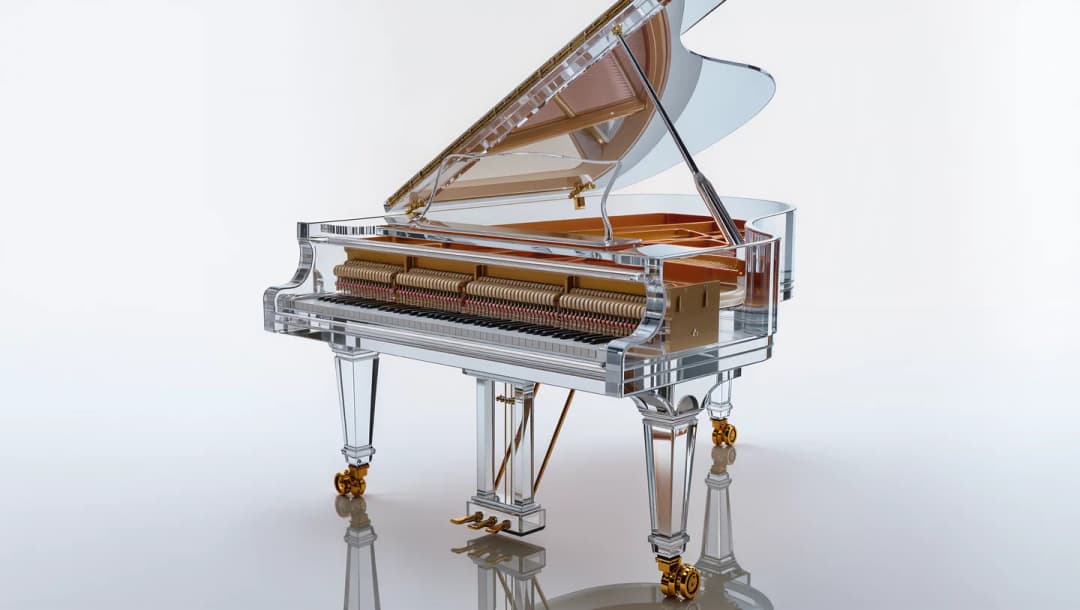
Translucent Grand Piano Product Prompt
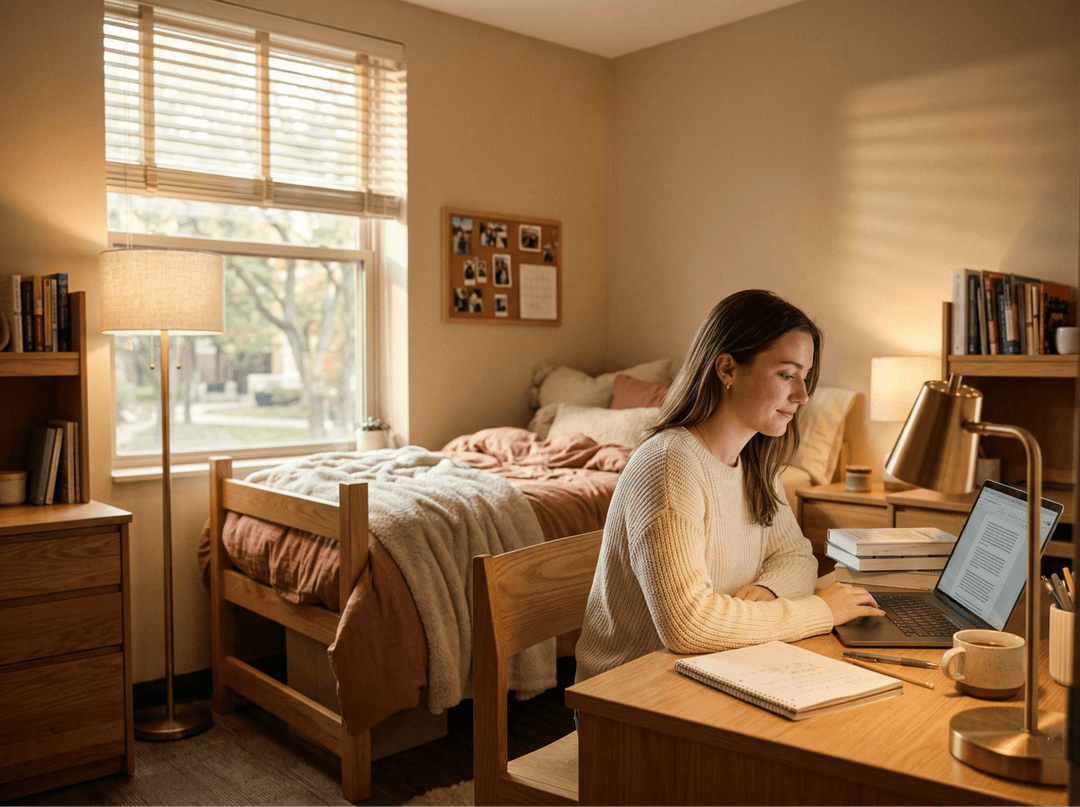
Warm Minimalist Dorm Study Prompt
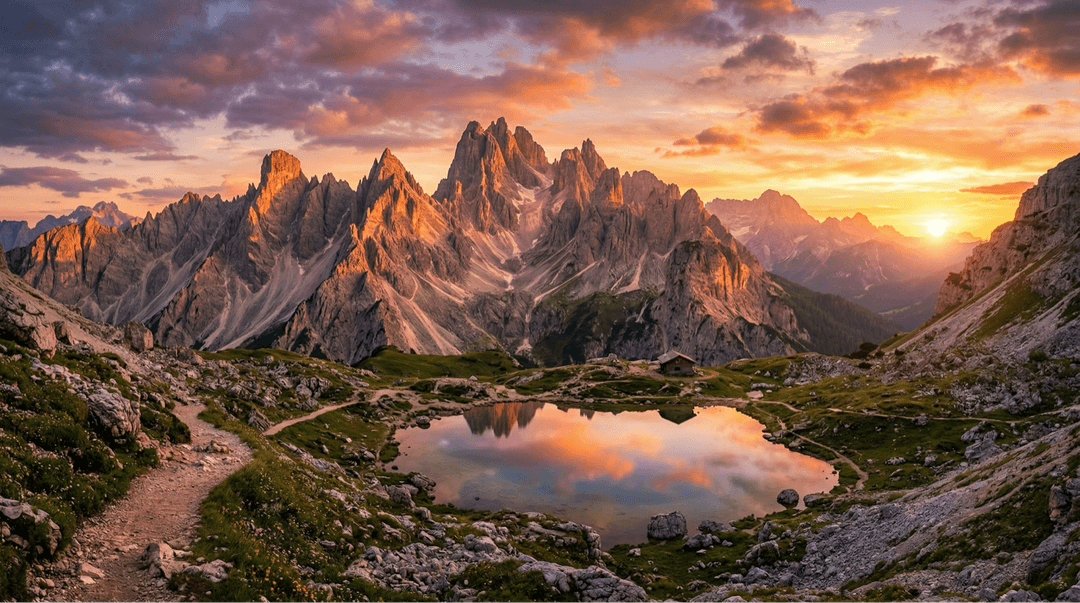
Dolomite Mountains at Sunset Prompt
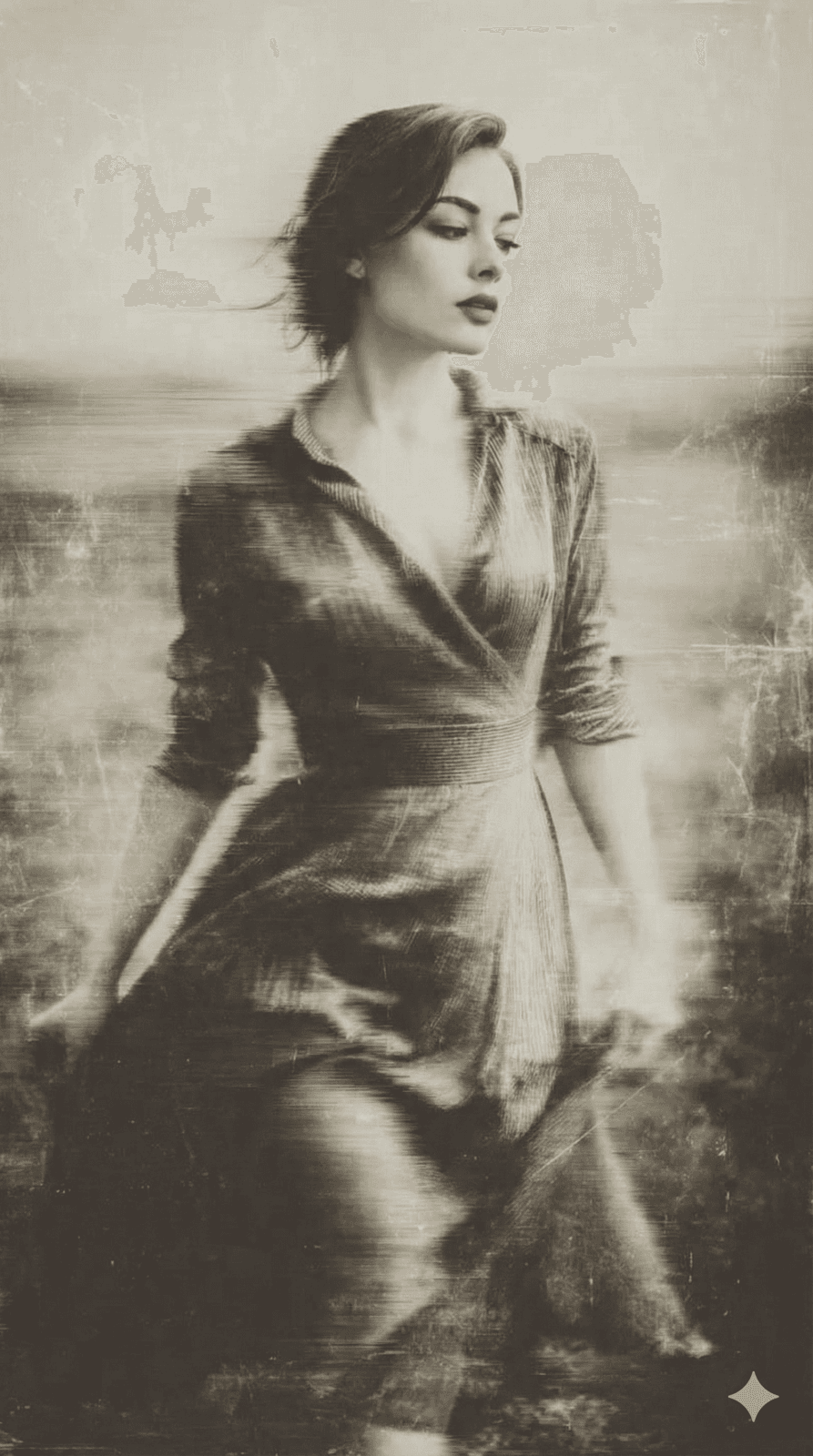
Damaged Wet-Plate Portrait Prompt
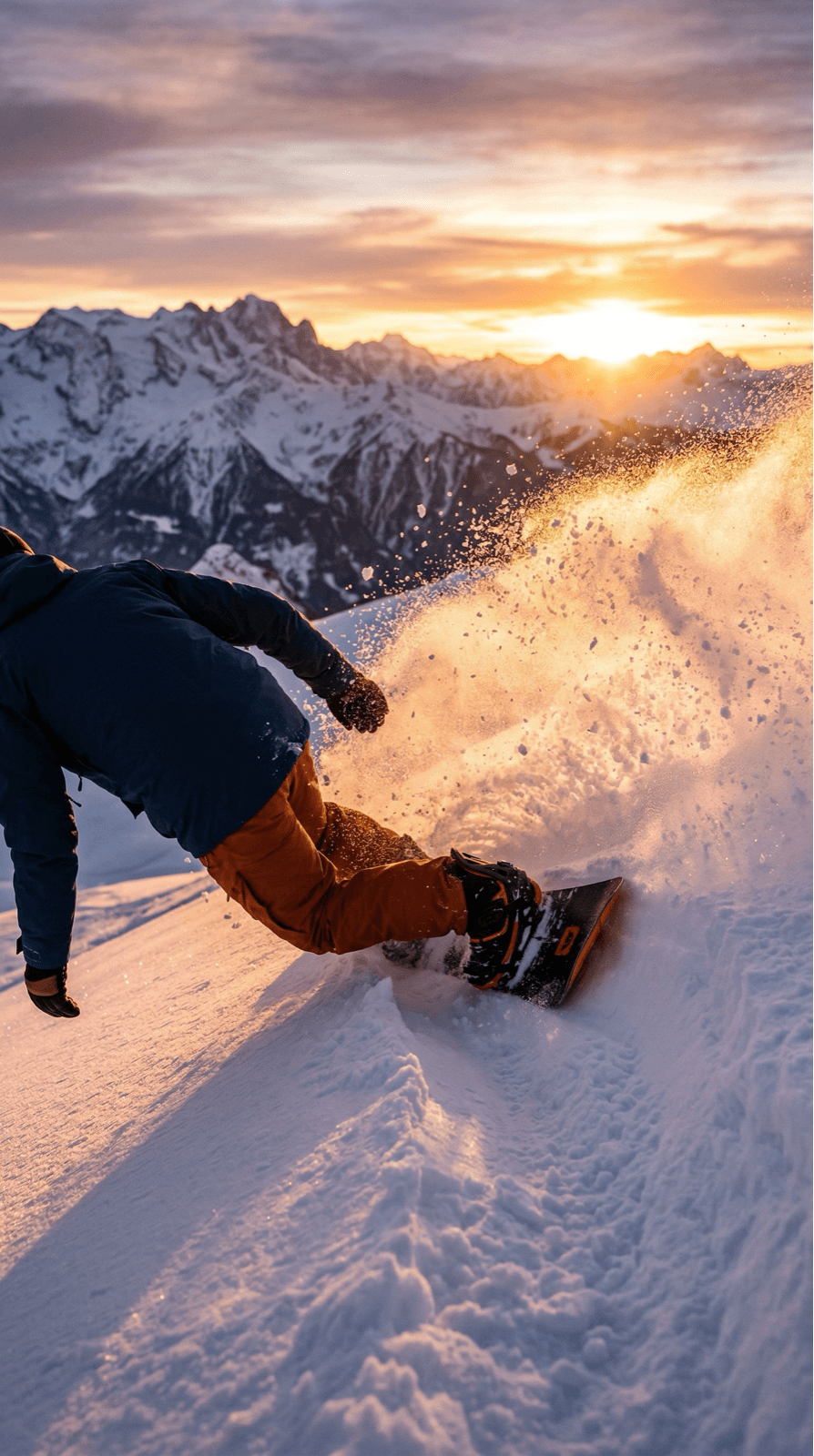
Powder Carve at Sunset Prompt
A reference image guides the result; the selected model still determines how it interprets your prompt.
Upload a reference image for image-to-image, or switch to text-to-image for a new scene.
Describe what should change and which details the model should try to keep.
Choose a model and the controls it supports, such as aspect ratio, quality, or format.
Open the generated image, then adjust the prompt or settings for another pass.
These prompt-led starting points frame the request; the selected model determines the final result.
Ask for a new color palette, medium, or mood while using your image as the visual reference.
Name the detail to change and keep the rest of the brief explicit; outcomes vary by model.
Use the editor task shortcut to frame the request, then inspect edges and details in the result.
Choose a wider or taller ratio where available, and describe what should continue beyond the crop.
Request changes to clarity, lighting, or noise; behavior depends on the selected model.
Open Photo Effects for curated starting points such as age, curls, PS2, cartoon-to-realistic, and chibi.
Questions about reference-led image editing? Contact us by email.
It uses an uploaded image as a visual starting point and your prompt to guide the requested changes. You can also switch to text-to-image when you want a new scene.
There is no exact-preservation guarantee. The reference image guides generation, but each model can change details. Inspect results before publishing.
Available models and controls vary. The generator shows options supported by the selected model, such as aspect ratio, quality, resolution, or format.
JPG, PNG, and WebP are supported. Per-model image counts and file-size limits can be lower than the general upload limit.
Commercial use depends on the model provider, your plan, and the rights to the source image. Check the applicable terms before using an output in client or commercial work.
Questions about reference-led image editing? Contact us by email. customer support team
Start with a reference photo, or choose text-to-image for a new scene. Write the brief and choose model-specific output controls in the same workspace.